


An unexpected finding should remain connected to the task that revealed it so the reviewer understands what the technician observed, can see the supporting evidence, and can identify any additional work that follows. When those details are split across a task record, a camera roll, and a conversation, someone has to reconstruct the relationship before making a decision.
Mobile documentation gives your technicians an opportunity to preserve that relationship while the work is still in front of them. The standard is simple: record each finding in the right place, attach the evidence that explains it, and link any non-routine work to its origin.
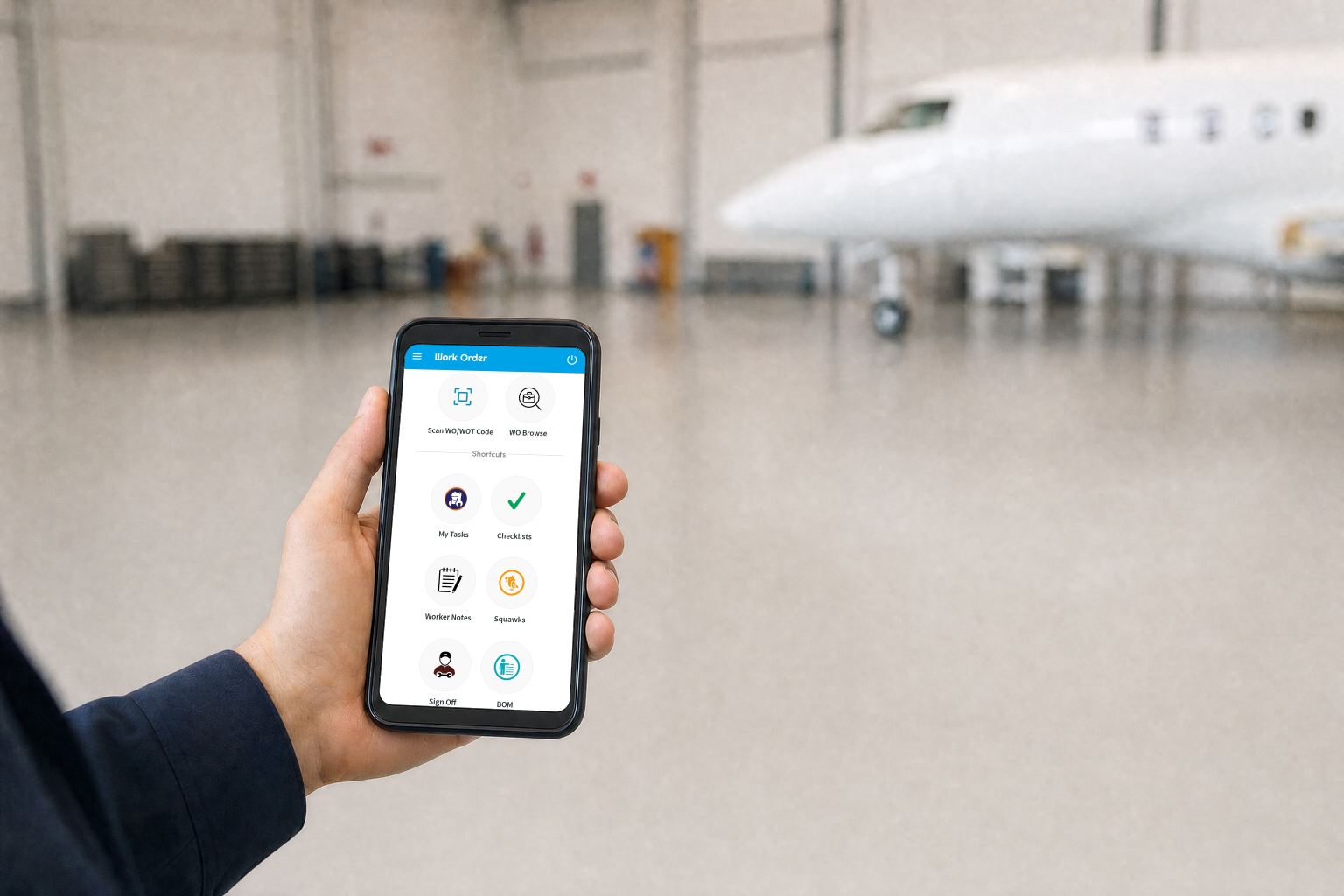
Work Order Tasks and Checklists Keep Documentation Connected to the Job
Work-order tasks define an activity within the job, and checklists give the technician a structured way to record the required checks or responses. That planned structure provides a starting point, whether the task was created for the current job or drawn from a reusable template. It also identifies the work being performed when something unexpected occurs.
A checklist response can show that a condition needs attention, but a reviewer may need more explanation than the response alone provides. The technician’s note describes the observation, and a photo can show the condition being discussed. Keeping those details with the task helps the reviewer understand the finding in relation to the work already underway.
Mechanic Notes Keep the Technician’s Explanation With the Task
Useful mechanic notes give everyone enough information to understand the observation without relying on a separate conversation. Such notes identify the condition and its location, relate the findings to the task, and describe any relevant work already performed. Notes should also indicate when a final explanation is still under review.
During review, the next person needs to distinguish what the technician observed from what the technician thinks caused it. Keeping those separate helps the reviewer identify what still needs to be checked before deciding what work is required.
Recording the observation directly in the task while the details are fresh gives the next person a fuller account to review. A separate message can draw attention to the issue, but the reviewer should be able to understand the condition described in the task record without searching through messages or asking the technician to fill in missing details.
Attach MRO Photos to Mechanic Notes and Work Order Tasks
A photo can make an observed condition easier to understand, especially when its position or appearance is difficult to describe in words. The written note still has an important job: it tells the reviewer what to look for and why the image is relevant. Together, the note and image can communicate more clearly than either would alone.
Where the photo is stored affects how useful it is. Attaching the photo to the note or task lets the reviewer see what the technician found and read the technician’s explanation in the same place. An image left in a separate camera roll requires someone to identify it, transfer it, and reconnect it with the correct job. Attaching the photo to the correct note or task right away means the reviewer won’t have to ask the technician later which condition the photo depicts.
Link Non-Routine Tasks to the Discrepancies That Prompted Them
Unfortunately, an added task can describe the work to be done without preserving the details that led to it. If those details remain in a message or conversation, reviewing the change means finding the original technician or searching outside the work order. Information captured during the inspection then has to be explained again.
Creating a non-routine from the task where the discrepancy was recorded keeps the added work linked to the technician’s notes and photos. The original task provides a record of the observed condition, while the non-routine records the work added to address it. Your team can follow that connection instead of relying on a separate retelling of the inspection.
Those links also help explain how the job’s scope developed. During a later review, your team can trace additional work back to the recorded conditions that prompted it. That makes the work order more useful for explaining why the job expanded: the rationale is grounded in the original observations, rather than inferred from descriptions of the added tasks.
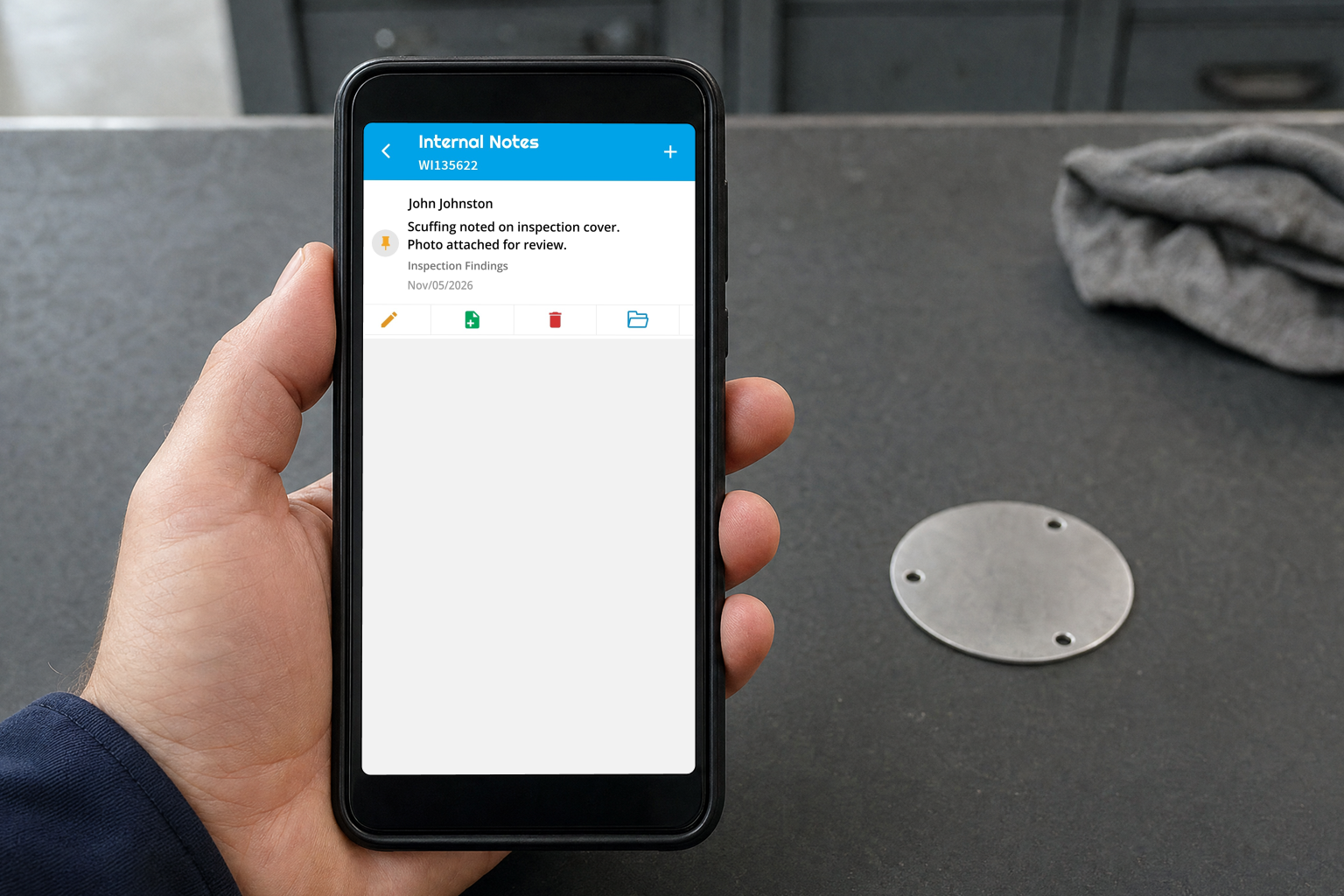
Vista-Suite Enterprise Connects Mobile Documentation to the Work Order
Vista-Suite Enterprise supports this approach through its mobile work-order capabilities. Technicians can manage assigned tasks, complete checklists, and record mechanic notes. They can also take a photo while writing a note and attach that image directly, keeping the written explanation and visual evidence together.
The mobile app also supports creating non-routines or squawks. Within the Work Order application, a non-routine task can be launched from a recorded task discrepancy and referenced back to the originating task. That relationship preserves the reason for the additional work instead of leaving the next person to match an isolated task to the recorded discrepancy.
These capabilities support a focused documentation practice: give the finding a clear explanation, keep its photos with the relevant work, and preserve the connection when the job requires a non-routine. Your team can then review the evidence and the resulting work within the same job context.
For the wider operating picture, our aviation MRO mobile app overview covers the connected workflow from intake through delivery.
Schedule a live demo of Vista-Suite Enterprise to see how mobile MRO documentation fits your MRO workflow at https://ambryhill.com/demo.
Questions About Mobile MRO Documentation in Vista-Suite Enterprise
Can Aviation Maintenance Technicians Update Tasks and Complete Checklists on Mobile?
Technicians can manage assigned tasks, update task activity, and complete Work Order or task checklists through the Vista-Suite Enterprise mobile app.
Can Aviation Technicians Attach Photos to Mechanic Notes on Mobile?
Yes. Using a mobile device, a technician can take a photo while writing a note and attach the image directly to it. The mobile app also supports photo capture within task and Work Order workflows.
How Are Non-Routine Tasks Linked to the Original Work Order Task?
The Work Order application supports launching a non-routine from a recorded task discrepancy. The resulting non-routine references the originating task.
Can Aviation Technicians Create Non-Routine Tasks on Mobile?
Yes. The Vista-Suite Enterprise mobile app supports creating non-routines or squawks, allowing aviation technicians to document unexpected issues and initiate additional work items from a mobile device.