

Create quotes from RFQs or start from a blank record, research pricing and history, manage line items and charges, track quote status, attach supporting files, preview customer-ready output, and send the finished quote. List, item, and Kanban views help teams work from the format that fits the task.
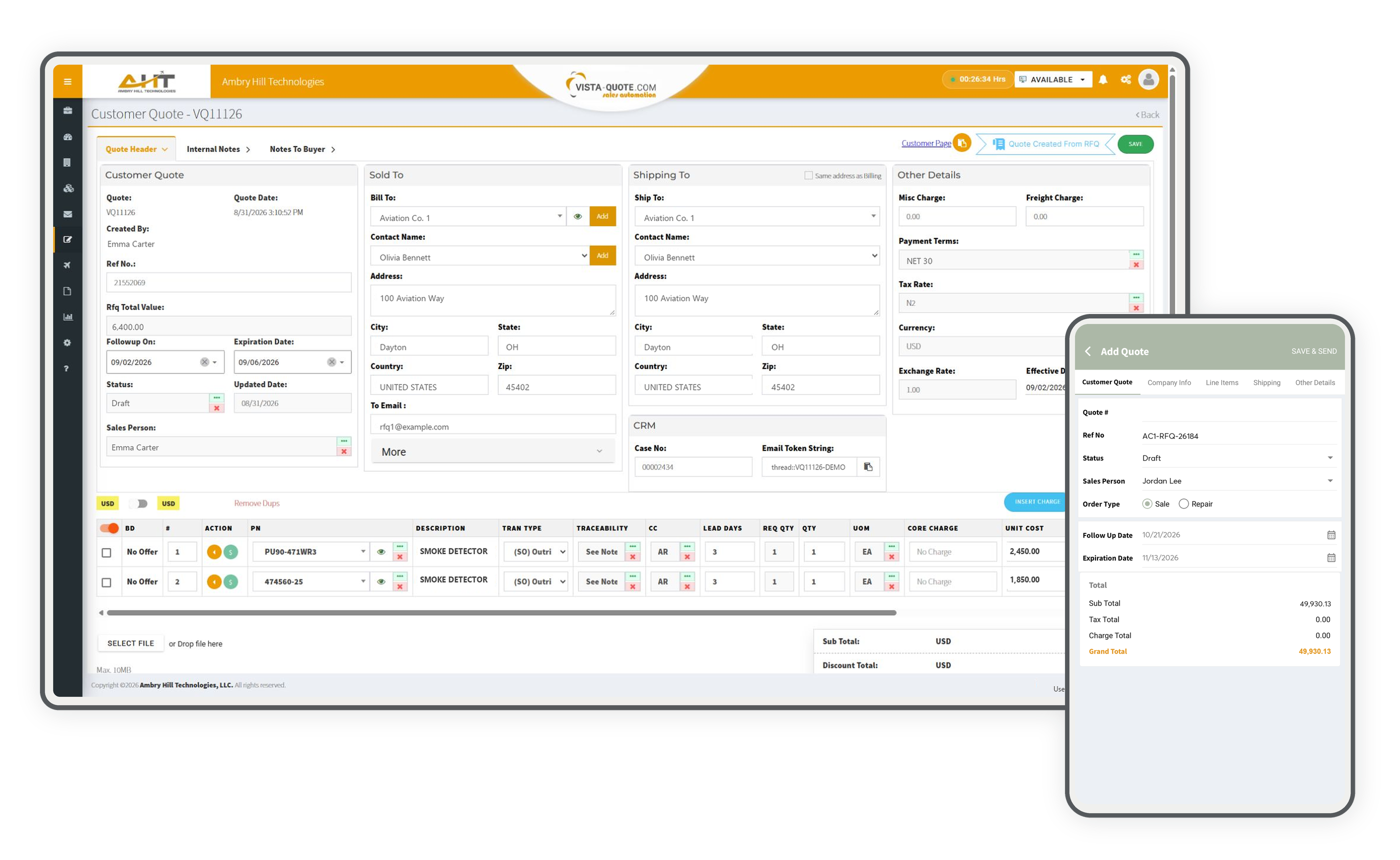
With Vista-Quote, we don't try to force you to create your quotes in our system. You have the flexibility to quote however you wish. You can quote through a listing service or by replying to the RFQ through our integrated Email viewer. Perhaps you manually enter the Quote into your ERP system, or you might prefer to quote directly through Vista-Quote. We leave the choice up to you and provide a wealth of options to keep your strategy systematically aligned.
Save quotes in progress and pick up where you left off without triggering emails or ERP actions. Use the Save/Preview step to review the email and PDF, edit the message, add CC/BCC recipients, or print the PDF. Each time you save a quote, updates are applied to the existing record, allowing you to continue working on in-progress quotes. Optionally, create a status code “Draft” for better organization. Then, after your many revisions, click Send to make it official.
When you are ready to submit your quote, the actions you select will run in one step (i.e., Create CRM Case, Create CRM Deal, Send Email, Insert to ERP, Hide Total), so you control exactly what happens. If nothing is selected, it only saves it as a draft for completion later.
Define your quote’s validity window with the Expiration date field. It specifies how long the offer will be honored and also controls how long any image-sharing URLs included with the quote remain active.
Vista-Quote records these as separate values and, depending on your ERP, can write them to different fields to clearly distinguish between the two. So, while they are often the same individual, they do not have to be.
When your collaborative sales team workflow uses the Co-Worker Shares feature, quote actions are tracked separately because the Salesperson and User may differ.
Selectable quote status codes give your team a simple, CRM-like way to organize and track quotes using a saved Kanban view that reflects your sales process. Use custom statuses across manual and automated workflows to keep quotes consistently categorized and to trigger highly targeted follow-up using status-based automation, such as Auto-Quoted and Auto-Follow-Up. Statuses are intentionally independent of ERP actions, serving purely as internal workflow markers rather than transaction drivers.
With the advent of online business process tools, managing projects in card-like layouts is becoming the norm. We have implemented this concept in your customer quotes, providing a visual and interactive Kanban board that allows you to manage your quoting process by moving quotes through various statuses. The boards can auto-refresh, filter, and give you drag-and-drop capabilities. Note that the quote status will not affect the status of quotes in your connected ERP system, as it is intended to aid Vista-Quote users with pipeline tracking independently.
Set a follow-up date on a quote to indicate when it should be revisited and keep follow-up timing visible within the corresponding quote Kanban. When automated customer quote follow-up emails are enabled, this date becomes the trigger for automated outreach. Sending an additional message simply requires updating the follow-up date and saving the quote. Emails are delivered to the contact listed in the quote header, with the quote creator CC’d. Automation can be for all quotes or limited to quotes with a designated status code based on your preference, such as “Auto-Follow-Up”.
Pivotal quote lifecycle events are surfaced with clear, on-screen signals within every saved quote. For example, completing and sending a new quote executes selected actions, such as sending the quote email or creating the quote in a connected ERP database. So then, after an ERP quote is created, the quote banner states that the quote, in its current form, is in the ERP system. If a quote was created through Auto-Quoting, a visible indicator identifies it for immediate context. When Online Quote Acceptance is used, a Customer Page hyperlink appears and can be copied and shared.
Vista-Quote provides flexible Bill-to and Ship-to controls that streamline address management in the quote. Easily change the Bill-To company, view its ERP history, and update contacts or addresses. When billing and shipping addresses are the same, copy the Billing Address to the Shipping Address with a single checkbox to copy immediately.
Distinguishing between a sale and a repair on a quote is crucial for internal tracking. While this designation does not appear on the customer-facing quote, it ensures accurate inventory and procurement management, since part sales involve direct shipments. At the same time, repairs may require tracking inbound components and coordinating service work. This classification also helps ensure the correct fulfillment process is followed.
Include a mix of line items having different transaction types such as outright sale, cost-plus exchange, flat-rate exchange, rental, brokered repair, bench check, overhaul, modification, and inspections – all within a single quote. This flexibility eliminates the need for separate quotes for different transaction types.
Every line item is capable of displaying crucial information on the customer quote, such as tag/certificate number, tag date, tagged by, traceability, and serial number. The details are automatically populated from the Vista-Quote inventory record to minimize data entry and clearly communicate the required item information.
When parts trading, brokering, or repair quotes are involved, a seller may need to quote a specific inventory record and carry its tag and traceability information into the line. An inventory line item can be pre-selected without allocating it, and supported ERP write-back can identify the specific item quoted.
Exchange quotes can include the core return by date, replacement charge, exchange note, and a list of acceptable part numbers for the core. Exchange line items are clearly detailed as cost-plus or flat-rate and show applicable core costs.
The Rental Detail tab adds Termination Date and Return Due Date fields to each quoted part, allowing you to record the expected rental timeframe directly on the quoting screen for item-specific terms.
Select alternates from a predefined list of linked part numbers or from the master parts catalog. Multiple alternate lines can be added to the quote when the customer request can be fulfilled through more than one acceptable part number.
Within a selection of quick-action options on each line item, the no-quote button indicates that while the item remains on the quote, it is intentionally being left out as a no-quote. The customer will feel more confident about the attention to detail that went into the quote preparation, knowing that all items were addressed. No-quote data can be one of many topics to explore using dashboards and reporting to uncover hidden opportunities for improved request fulfillment. Alternatively, you can select “Call for Price”.
Create exchange core charges, repair charges, and over-and-above charges against part master records so the related amounts remain visible with the part transaction history. Vista-Quote supports both non-inventory transactions and charge transactions within the quote workflow.
All transactions provide special charge fields in the header for Freight and Miscellaneous costs that will bypass the tax calculations and appear in the totals of the transactions. These are in addition to the traditional line item charge capabilities and are a convenient feature for passing costs onto your customer.
Visualize the item-level layers of pricing calculations as you quote. The Item Calculator displays how your cost, discount, exchange rate, tax, profit margin, core charge, list price, and final pricing are coming together for the selected item, making the pricing composition clear during quote preparation.
International businesses transact in multiple currencies, and Vista-Quote can support that. But we give you more than just a currency code table. With our integration to online real-time currency tracking services, you can update your exchange rates any time you desire with just a few clicks of the mouse. Currency codes, exchange rates, and rate effective dates are all held against the transactions, so updating your exchange rates won't interfere with your historical data.
Vista-Quote has powerful tax code features for customer quotes, allowing you to specify different tax rates by transaction type (i.e., Outright, Overhaul, Exchange, Repair, Kit, Brokered Repair). This means you can create as many tax codes as you need, assigned to the appropriate transaction type.
Each user can arrange the location of each grid window according to their preferences for optimal productivity. Additionally, you can choose whether the grid windows are stacked one on top of the other (wide view), or side-by-side (standard view). This same feature is utilized across the system wherever data tables are present. The specific columns of data within each grid can also be customized (as a company-wide adjustment).
Pinned notes let you create system-wide pins or categories with which notes can be created. Each pinned note is date/time-stamped and shows the creator of the note. You can also attach files, search, filter, and even run reports on different pin categories. Vista-Quote's pinned note system is so powerful that some companies use it instead of a CRM.
Keep customer-facing notes separate from internal working notes on Vista-Quote transactions. External notes provide a dedicated place for information the customer or vendor should see in addition to the applicable terms and conditions.
Communicate buyer-facing details with the General Note to Buyer field. This note appears on the customer quote next to the price totals, and system-wide default text can be set for every quote to include, such as Terms and Conditions or other essential information customers need to know consistently.
Vista-Quote automatically applies your account’s default quote template, but you can override it on a specific quote when a different format is needed. If that becomes your new standard, you can save it as your default template so your future quotes use it without extra steps.
The quote preview screen lets you confirm the selected template, edit the email body, add CC/BCC recipients, and print the PDF before sending, so the customer receives the right document the first time.
The document customization in Vista-Quote offers the flexibility to design and edit your own materials. Although the data structure and design tools available are made with both beginners and advanced users in mind, our team can design and build custom documents as an additional service.
Save and preview a quote to commit your work and verify the customer-facing email and PDF before sending. While saving, Vista-Quote retains the new or edited quote in its records, and the Preview window opens to review the Email Message, allowing edits to the email text, CC/BCC additions, and a preview of the exact PDF, with printing available if needed. If you prefer to bypass the review, easily skip it and jump straight to sending.
While previewing your quote, you can review exactly how the PDF attachment will look before you send the email, giving customers a reliably formatted, printable copy of the quote.
Deliver a customer-facing quote webpage view with Online Quote Acceptance, giving buyers a convenient, self-service way to review and respond to quotes without back-and-forth emails. The customer can select items for approval and submit acceptance with their PO details included, so you can proceed immediately with the next step.
Quickly duplicate entire quotes or individual line items in Vista-Quote to streamline repetitive quoting tasks. When creating a new quote, you can clone a previous quote to retain customer details, pricing, and structure. Within quotes, you can clone specific line items within a quote to reuse part information, pricing, etc. This reduces manual entry and speeds up quote preparation for recurring or similar requests.
With literally one click, you can populate a line item’s fields with details from the most recent quote of the selected item that flowed from Vista-Quote. Imagine the time saved when you skip the copy/paste and let Vista-Quote pull in the last quoted price and other details instantly. It's perfect for repeat items and other specialties.
Eliminate duplicate line items with one click for a cleaner, more relevant quote. Vista-Quote’s “Remove Dups” action in a customer quote automatically deletes repeated lines that share the same PN, Transaction Type, and Condition, keeping only unique items for the customer.
Speed vendor lookups (and price research) by creating a custom list of websites we call Simple Search links. The Simple Search list is conveniently located next to every requested part number on the RFQ Management page and is also shown on the Quoting screen for immediate access during quote preparation. This powerful capability eliminates your repetitive copy/paste search by replacing it with a customizable list of your favorite sources. With one click, your source is launched with the part number already defined and searched.
Vista-Quote's powerful browse grids offer quick visibility to child records. For example, when you are searching customer quotes, you don't have to open the quote to view the line items. Just click the sub-browse and have full access to all the line items on the spot.
Each top-level transaction or record has its own unique URL. This is important when it comes to software. Having that unique URL allows you to share the link directly with your co-workers for collaboration or embed it as a hyperlink in reports to open transactions directly.
Attach files to customer quotes and outbound quote emails. Files selected from the local computer for the quote email are saved to the Customer Quote Header files area, while supported documents and images from a connected ERP inventory line can be shared through a link placed in the line-item notes.
Use consolidated views to find files attached to Vista-Quote records without opening each record individually. When supported by the connected system, documents and images from ERP inventory lines are also available from the related part record.
Speed is everything. That's why we incorporate shortcuts to everyday tasks all over our system. Printing is a great example. Just look up the order from the main browse, and you can print your default documents without even opening the transaction. Our convenient quick-action menus provide various shortcut options based on your location in the system.
When preparing a quote, the original inbound RFQ message is made readily available for viewing and interacting with (e.g., replying, forwarding). When the RFQ email viewing icon is clicked, a link to the original message will reveal a new window atop the user's workspace. Easily preview, reply, forward, and access files for attachment.
Create customer quotes in the Vista-Quote mobile application for iOS and Android by converting an RFQ or starting from a blank quote. Mobile quotes use the same Vista-Quote records available online, giving sellers another way to review and continue quote work away from the desktop.
Use a visual, drag-and-drop Kanban view to monitor and manage customer quotes by their assigned status. Each quote appears in a swim lane that reflects its current stage, with filters for team, order type, or status to support follow-up and workload coordination.
Customer Quotes can be optionally viewed in a Kanban layout, allowing you to see where each record stands in its process phase. Selectable quote status codes give your team a simple, CRM-like way to organize and track quotes using a saved Kanban view that reflects your sales process.
Filter Kanban information by team, order type, status, or other criteria, tailoring the Kanban experience to your immediate needs without leaning on reports or complex queries. Note that the quote status will not affect the status of quotes in your connected ERP system, as it is intended to aid Vista-Quote users with pipeline tracking independently.
The quoting process isn’t a black box anymore. Kanban boards provide immediate insight into the quoting pipeline for what’s emailed, accepted, denied, or any number of customized statuses.
Set a follow-up date on a quote to indicate when it should be revisited and keep follow-up timing visible within the corresponding quote Kanban. When automated customer quote follow-up emails are enabled, this date becomes the trigger for automated outreach. Sending an additional message simply requires updating the follow-up date and saving the quote. Automation can be for all quotes or limited to quotes with a designated status code based on your preference, such as “Auto-Follow-Up”.
From a single card, take action without opening the full record. You can view pricing, terms, customer information, status, important dates, and access common actions that keep quotes moving through the pipeline. You can also add internal notes, edit quote details, update status, and adjust follow-up or expiration dates directly from the board. Quick-access buttons enable printing, downloading, or emailing the quote to the customer, as well as viewing company details and historical activity for added context.
The Kanban view enhances your workflow by providing a clean and organized layout without replacing the standard table/grid views users already know. The boards can auto-refresh, filter, and give you drag-and-drop capabilities.
Move customer quotes between stages by simply dragging them to a new column/list for total control over how work progresses through the pipeline, without rigid rules.
Research quotes, review workflow signals, use quick actions, and inspect populated line items without opening the full quote.
Research quote lines directly with reliable exact-PN descriptions and coherent transaction, traceability, certification, fulfillment, core-charge, and illustrative cost context.
Build a complete quote in one workspace with customer context, fulfillment details, line-level controls, and coherent pricing ready for review.
Compose and verify list-price discounts, cost, margin, tax, core charge, currency conversion, and final item totals in one connected pricing view.
Review a dense, customer-ready quote with useful serial, condition, tag, trace, and secure supporting-document details across its lines, plus a staged attachment, before any email, ERP, or CRM action.
Deliver a complete customer quote with coherent line-item detail, secure supporting-document links, a staged attachment, and reconciled totals in one customer-ready document.
Review quote and no-quote totals alongside daily RFQ intake and outcome trends to see how customer quoting activity is moving across the selected period.
Keep quote creation, follow-up, customer details, pricing, and finished output available from the same mobile workflow.
Review quotes by workflow stage, then open card-level actions for buyer notes, quote updates, PDF download, or printing so the next sales step can be handled directly from a phone.
Review every quoted item with condition, quantity, and price context, then download or print the customer quote from the same mobile record to keep follow-up moving away from the desk.
Open the completed customer quote in the device’s native print preview to review the branded, customer-ready document before printing.
Build a structured quote with ownership, workflow status, order type, follow-up timing, expiration, and running totals in one mobile workspace so sales work can keep moving away from the desk.
Carry the customer, buyer, contact channels, and account address into the mobile quote so the sales record stays complete and ready for follow-up.
Review part, transaction, quantity, and line-value details together, then add or remove quote lines from the same mobile workspace to keep pricing work moving.
Reuse the sold-to address or select a distinct company, contact, and receiving location so fulfillment details stay aligned with the customer’s delivery needs.
Set tax treatment, currency, effective date, buyer remarks, and the customer-facing template while keeping ERP insertion, email delivery, and total visibility under user control.
Search across customer quotes, compare values and item counts at a glance, and see each assigned status before opening the full record.
Software development moves fast, and features evolve over time. While we strive to keep this and other pages accurate, some information may not reflect the most recent changes. For the most current details, we recommend scheduling a live demo at ambryhill.com/demo.
Create flexible customer quotes faster and keep every opportunity moving through a visible sales pipeline.